Linux Quick Tips: Toolbx
#quick-tips
#linux
#workflow
I recently reformatted my laptop.
I’ve been using Fedora Workstation as my OS since I stopped the infamous distro hopping.
A challenge I faced in my setup is dealing with software that isn’t available in DNF repositories or isn’t compatible with the distro for some reason.
A good example is Playwright, an end-to-end testing tool for web applications that I like to use.
According to the official documentation, Playwright officially supports Ubuntu — but not Fedora.
How do I work around that limitation without ditching my favorite distro?
The answer: Toolbx!
Toolbx is a tool that lets you run containerized environments using OCI containers, with Podman (default) or Docker as the backend.
Running Playwright with Toolbx
If you’re using Fedora Workstation like me, Toolbx is already pre-installed.
Otherwise, you can follow the installation instructions here.
Let’s set up a Playwright project inside a toolbox.
Creating a Project
mkdir toolbx-rocks
cd toolbx-rocks
npm init -y
npm init playwright@latest
When asked about installing system dependencies and browser drivers, choose No — we’ll take care of that inside the toolbox.
Creating and Entering an Ubuntu Toolbox
Create a toolbox container running Ubuntu 24.04:
toolbox create --distro ubuntu --release 24.04 ubuntuThen, enter the container:
toolbox enter ubuntu💡 Tip: If you’re using Ghostty, you might have issues with input, backspace, or commands like clear inside the container. To work around that, run:
TERM=xterm-256color toolbox enter ubuntuInstalling Playwright Dependencies
Inside the toolbox, navigate to the project directory and run:
npx playwright install
npx playwright install-deps
These commands install the required browser drivers and system dependencies.
Running Playwright
To check that everything works:
npx playwright test --uiYou should see the Playwright interface pop up. 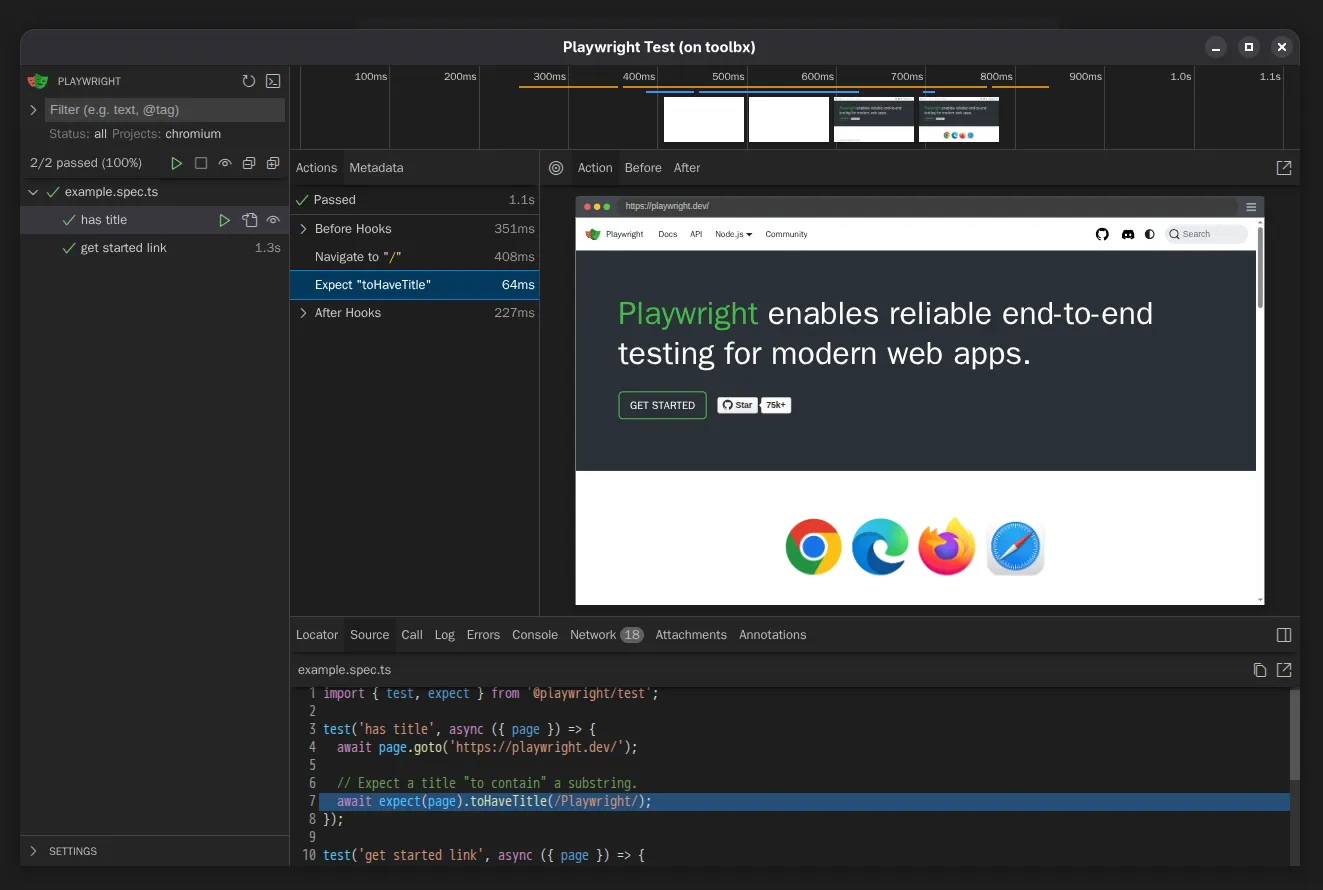
Nice.
Conclusion
Toolbx is super handy for running software that doesn’t support your distro — like Playwright in this case.
Even though this isn’t the most advanced use case, it shows how Toolbx can solve this kind of problem with very little overhead.
There are other tools out there, like Distrobox, but since I’m following a stick to defaults approach, I’ll go with the pre-installed option.
Thanks for reading.
I’ll probably post more quick tips like this in the future.